User Guide
How to download and use Pavl-off
Follow the steps below to install the app Pavl-off and get your device set up.
Download from the App Store
- Open this App Store link on your iPhone: Pavl-off on App Store.
- Tap Get (or the cloud icon) and install the app.
- Open Pavl-off once installation finishes.
Complete first-time setup
- Allow Bluetooth access when prompted.
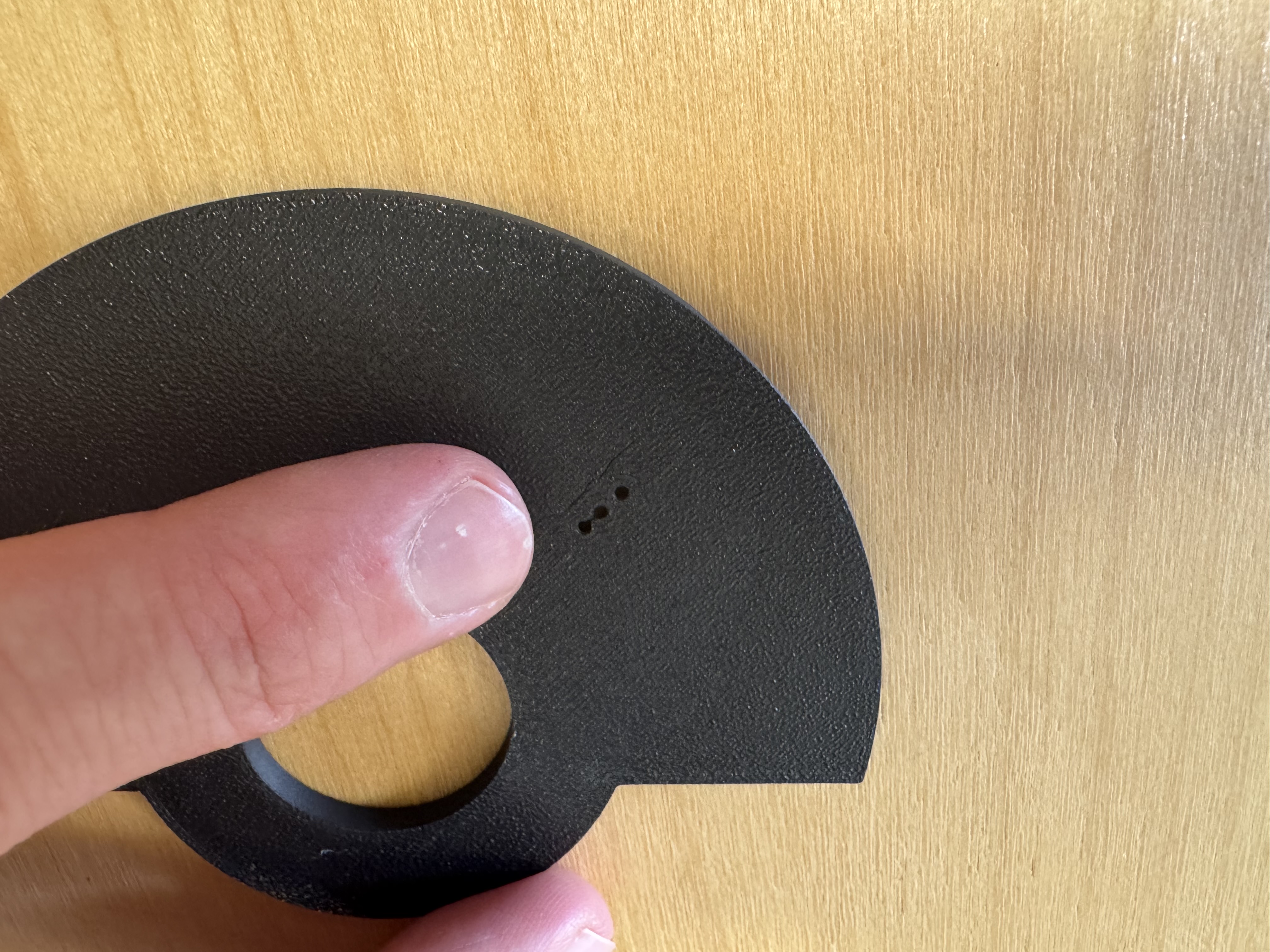
- Wake up your Pavl-off workout sensor by pressing gently on top surface in the location shown below. A gently pulsing blue light will let you know that it is awake.
- The sensor may need to be charged. Plug in a USB-C charger and wait for the red light to turn green if needed.
- Wait for the app to detect and connect to your sensor.
Configure Settings
- Tap Workout Settings.
- You can add new exercises with the "Add New Exercise" button
- You can remove existing exercises by tapping the red trash can icon next to each exercise.
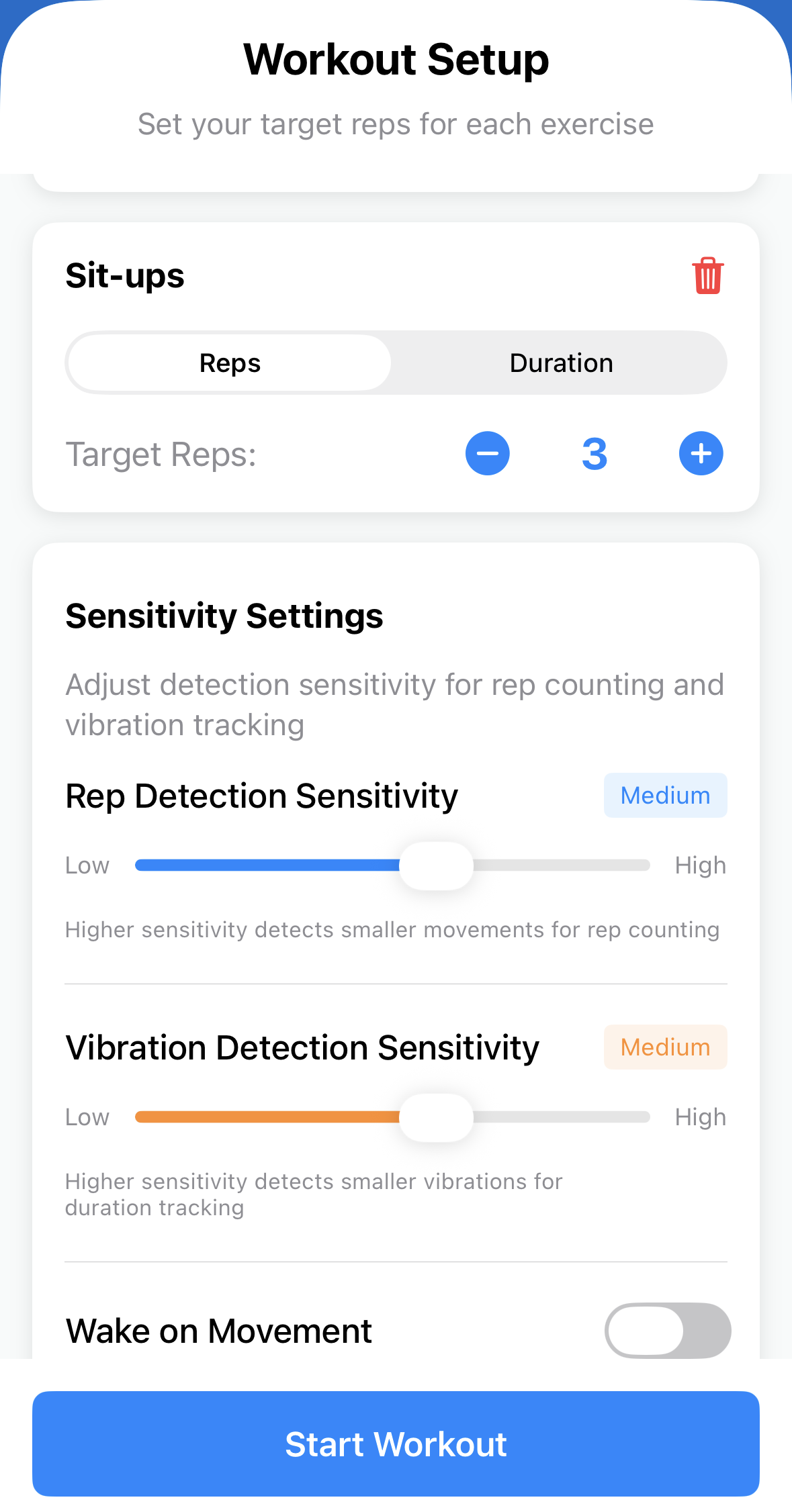
- Exercises can be either repetitions or duration based. The number for each can be increased or decreased with the "+" and "-" buttons.
- The "Rep Detection Sensitivity" slider will set how much movement is needed to count as one rep.
- The "Vibration Detection Sensitivity" will adjust how much movement is needed to count as activity for a duration based activity.
- The "Wake on Movement" toggle will trigger Pavl-off to wake up automatically when it is picked up. This slightly decreases the battery life.
- The "Select Apps to Block" button allows you to select which apps will be blocked until you exercise.
- The "Hold to Clear Selection" button will permanently unblock all apps if held for 30 seconds.
- There are also some settings which appear only when a sensor is connected.
- When a sensor is connected you can install new firmware to it using the "Update Firmware" option.
- The "Calibrate Sensor" option requires the sensor to be sitting still and flat on a surface. It will take about one minute to recalibrate itself.
- Tap Start Workout to return to the main screen.
Start exercising
- Perform your exercise while Pavl-off tracks progress in real time.
- The selected apps will remain blocked until you hit your goals.
Troubleshooting quick tips
- If no sensor appears, ensure Bluetooth is enabled and the sensor is powered on (blue light visible).
- If app blocking does not engage, re-check Screen Time permissions in iOS settings.
- If rep counts seem inaccurate, adjust the sensitivity.